> ## Documentation Index
> Fetch the complete documentation index at: https://magicpatterns.mintlify.site/docs/llms.txt
> Use this file to discover all available pages before exploring further.
# Typography and Icons
> Learn how to use custom fonts and icons in your Magic Patterns designs
## Typography
Magic Patterns supports custom fonts through the **Typography** section of your [Design System](/docs/documentation/design-systems/overview). You can upload your own font files, choose a popular Google Font, or paste a web-hosted font URL. Every design created with that Design System will automatically use your specified fonts.
You can also reference any font by name directly in your prompts:
```Example Prompt theme={null}
Use Merriweather font from Google Fonts.
```
### Managing Fonts in Your Design System
The Typography section lives inside your Design System and lets you create font groups for different use cases like headings, or body text
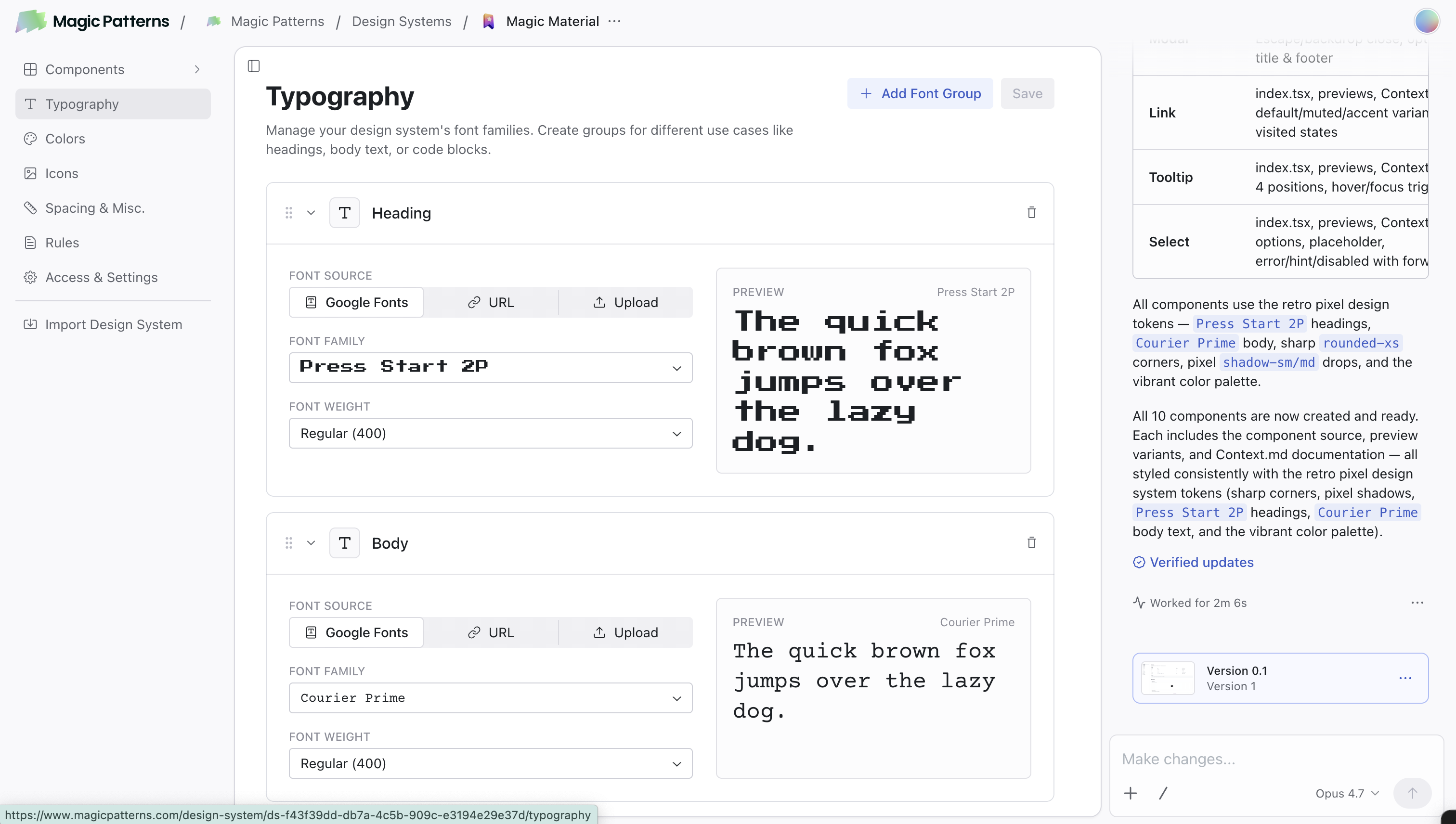 To set up fonts in your Design System:
1. Open your Design System
2. Go to the **Typography** section
3. Click Add Font Group to create a new group
4. Choose your font source:
* Upload your own custom font file
* Pick a Google Font from [fonts.google.com](https://fonts.google.com)
* Paste a link to any web-hosted font
5. Save your changes
Now every design you create with that Design System will automatically use your specified fonts.
### Finding Google Fonts
To explore available fonts:
1. Visit [Google Fonts](https://fonts.google.com) to browse thousands of free fonts
2. Preview different fonts and styles
3. Note the font name (e.g., "Roboto", "Playfair Display")
4. Use that exact name when adding a Google Font group, or reference it directly in your prompt
## Icons
Magic Patterns supports custom icons through the **Icons** section of your [Design System](/docs/documentation/design-systems/overview). You can choose from popular icon libraries like Lucide, or import your own custom icons by uploading SVG files or providing URLs.
To set up fonts in your Design System:
1. Open your Design System
2. Go to the **Typography** section
3. Click Add Font Group to create a new group
4. Choose your font source:
* Upload your own custom font file
* Pick a Google Font from [fonts.google.com](https://fonts.google.com)
* Paste a link to any web-hosted font
5. Save your changes
Now every design you create with that Design System will automatically use your specified fonts.
### Finding Google Fonts
To explore available fonts:
1. Visit [Google Fonts](https://fonts.google.com) to browse thousands of free fonts
2. Preview different fonts and styles
3. Note the font name (e.g., "Roboto", "Playfair Display")
4. Use that exact name when adding a Google Font group, or reference it directly in your prompt
## Icons
Magic Patterns supports custom icons through the **Icons** section of your [Design System](/docs/documentation/design-systems/overview). You can choose from popular icon libraries like Lucide, or import your own custom icons by uploading SVG files or providing URLs.
 ### Managing Icons in Your Design System
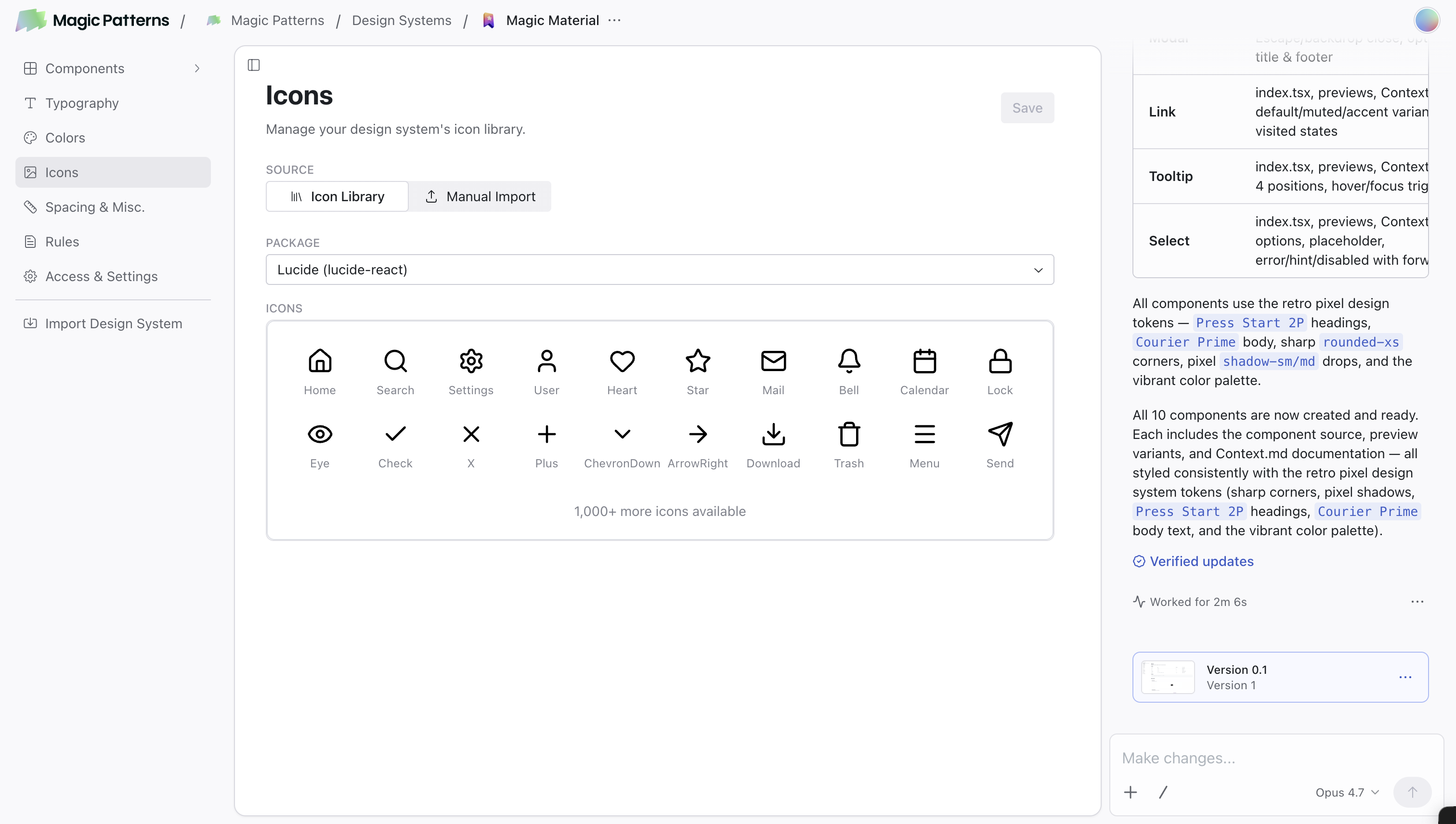
The Icons section lives inside your Design System and lets you choose between two modes:
1. **Icon Library** - Select from popular icon packages like Lucide React
2. **Manual Import** - Upload your own custom icons by providing SVG files or URLs
To set up icons in your Design System:
1. Open your Design System
2. Go to the **Icons** section
3. Choose your icon source:
* Select an icon library from the dropdown (e.g., Lucide React)
* Or switch to Manual Import to add custom icons
4. For manual imports, you can:
* Drag and drop SVG files
* Paste SVG code directly
* Provide URLs to hosted icon files
5. Save your changes
Now every design you create with that Design System will have access to your specified icons.
### Managing Icons in Your Design System
The Icons section lives inside your Design System and lets you choose between two modes:
1. **Icon Library** - Select from popular icon packages like Lucide React
2. **Manual Import** - Upload your own custom icons by providing SVG files or URLs
To set up icons in your Design System:
1. Open your Design System
2. Go to the **Icons** section
3. Choose your icon source:
* Select an icon library from the dropdown (e.g., Lucide React)
* Or switch to Manual Import to add custom icons
4. For manual imports, you can:
* Drag and drop SVG files
* Paste SVG code directly
* Provide URLs to hosted icon files
5. Save your changes
Now every design you create with that Design System will have access to your specified icons.