> ## Documentation Index
> Fetch the complete documentation index at: https://magicpatterns.mintlify.site/docs/llms.txt
> Use this file to discover all available pages before exploring further.
# Slide Decks
> Create AI-generated slide presentations from a prompt, or convert any existing design into a deck.
## Creating a slide deck
### From a prompt
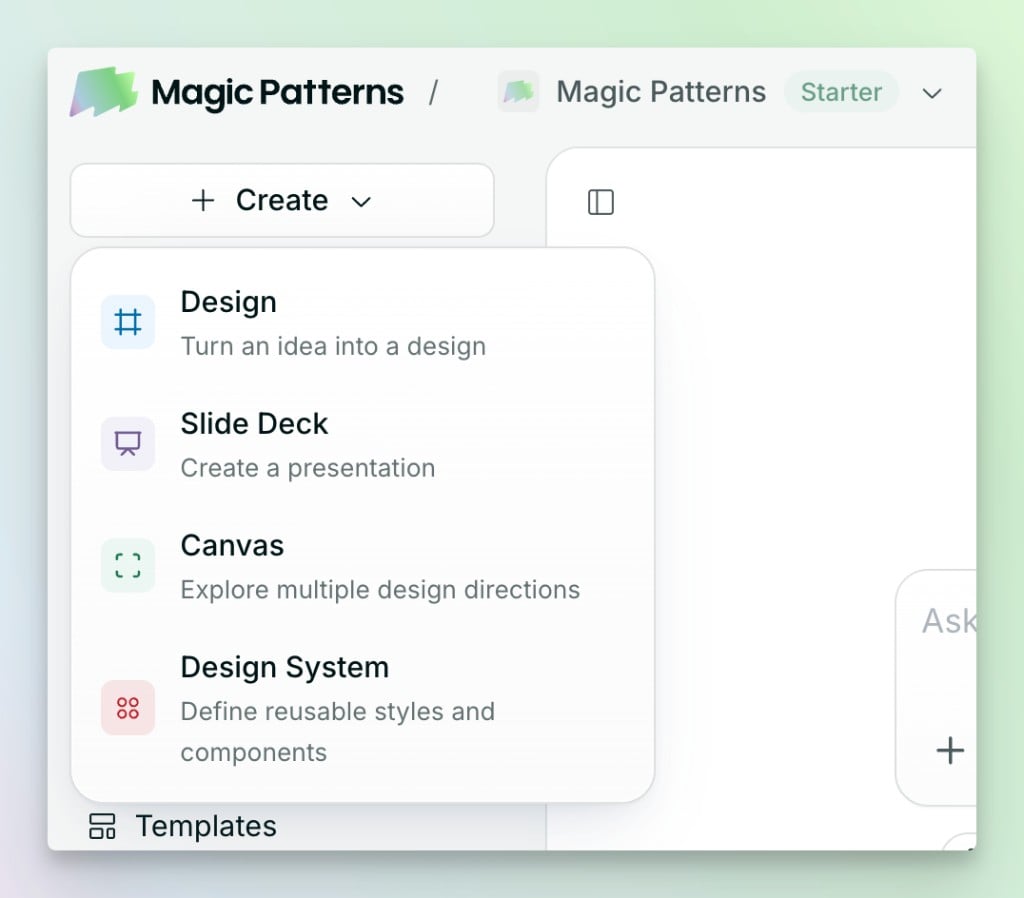
Open **Create** in the top-left corner and choose **Slide Deck**. When the dialog opens, describe the presentation you want or switch to **Outline** to plan each slide yourself.
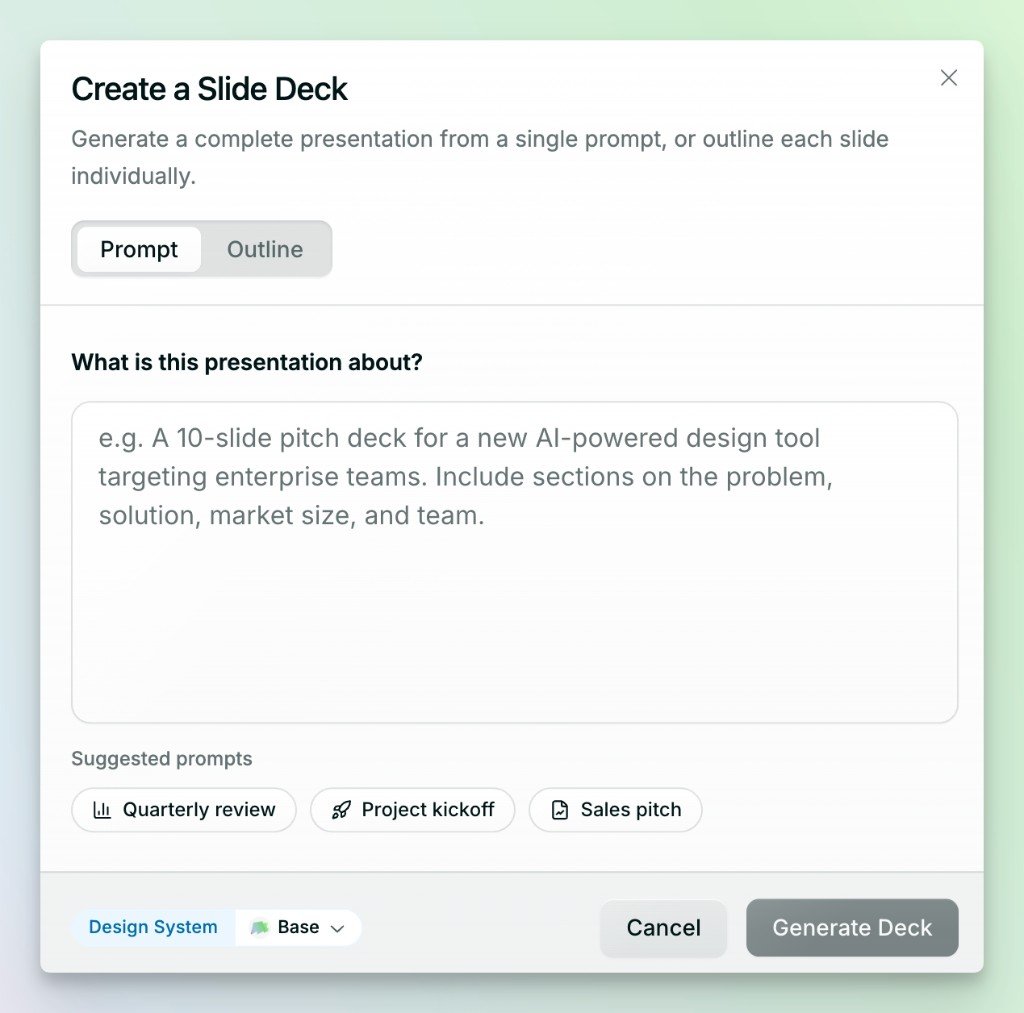 Use an existing design system to bring your brand styles and components into the deck.
### From an existing design
If your design already has the content you need, use it as the source for a new deck.
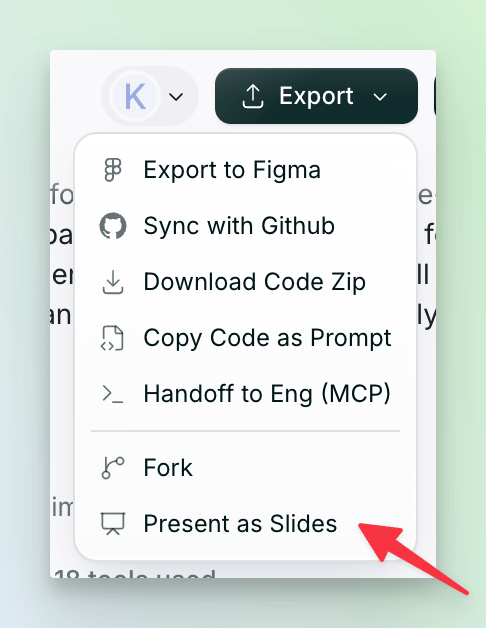
Click **Export** in the top-right corner of the editor.
Select **Present as Slides**. You can add a prompt if you want to control how Magic Patterns adapts the design.
Use an existing design system to bring your brand styles and components into the deck.
### From an existing design
If your design already has the content you need, use it as the source for a new deck.
Click **Export** in the top-right corner of the editor.
Select **Present as Slides**. You can add a prompt if you want to control how Magic Patterns adapts the design.
 Magic Patterns opens the deck in a new tab and leaves the original design unchanged.
Allow pop-ups from Magic Patterns so the new deck can open in a separate tab.
## Editing slides
### Reordering slides
Drag a thumbnail to move that slide. To move several slides together, select them with **Cmd/Ctrl + click** or **Shift + click** before dragging.
### Deleting slides
Right-click a thumbnail and choose **Delete**. You can also select one or more slides and press **Delete / Backspace**.
### Adding and editing content
Select a slide, then tell the agent what to change in the chat bar. You can also edit directly utilizing visual edit.
Present fullscreen or download your slides as a PDF.
Magic Patterns opens the deck in a new tab and leaves the original design unchanged.
Allow pop-ups from Magic Patterns so the new deck can open in a separate tab.
## Editing slides
### Reordering slides
Drag a thumbnail to move that slide. To move several slides together, select them with **Cmd/Ctrl + click** or **Shift + click** before dragging.
### Deleting slides
Right-click a thumbnail and choose **Delete**. You can also select one or more slides and press **Delete / Backspace**.
### Adding and editing content
Select a slide, then tell the agent what to change in the chat bar. You can also edit directly utilizing visual edit.
Present fullscreen or download your slides as a PDF.