

Creating a slide deck
From a prompt
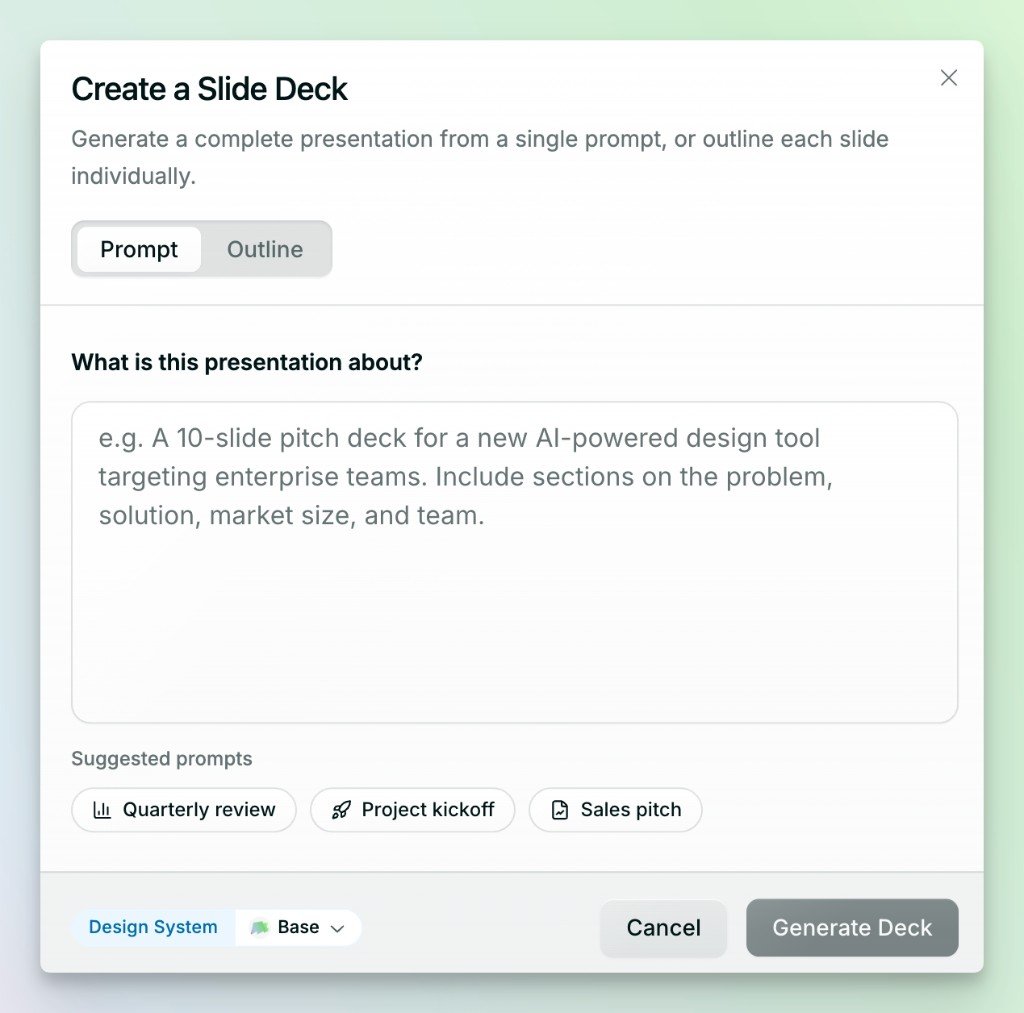
Open Create in the top-left corner and choose Slide Deck. When the dialog opens, describe the presentation you want or switch to Outline to plan each slide yourself.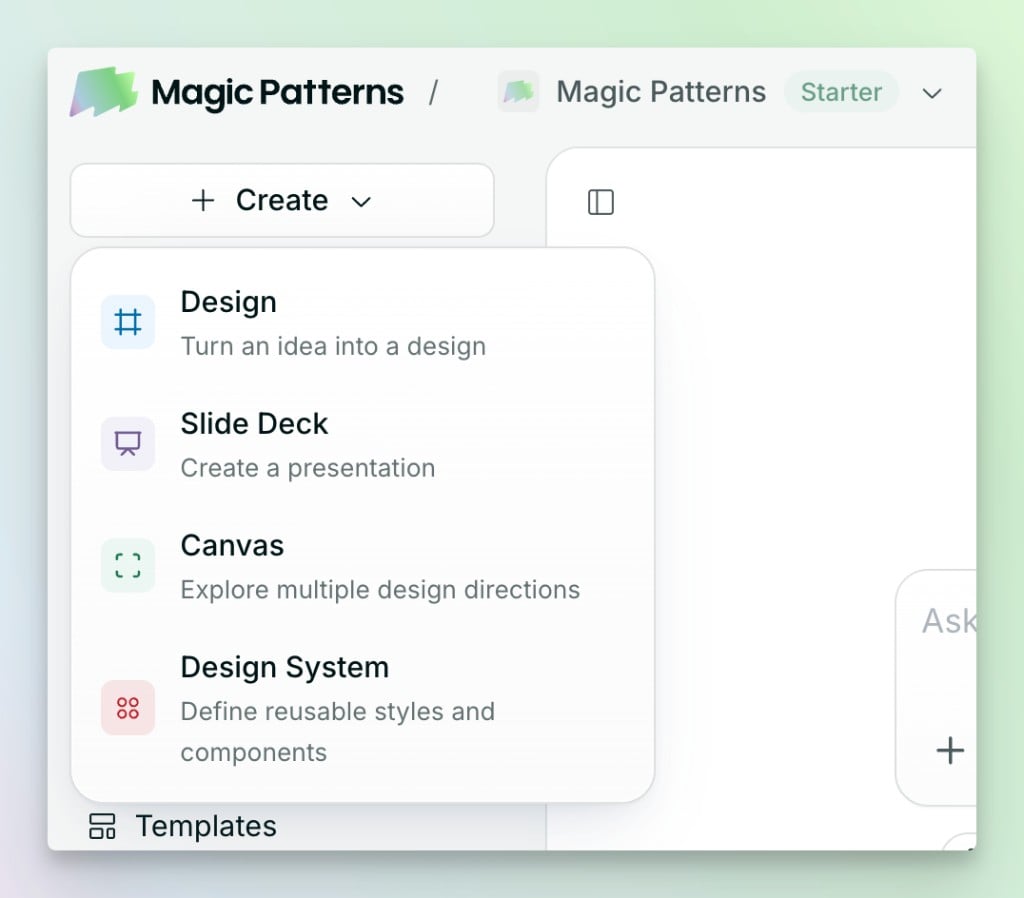
From an existing design
If your design already has the content you need, use it as the source for a new deck.1
Open the Export menu
Click Export in the top-right corner of the editor.
2
Choose Present as Slides
Select Present as Slides. You can add a prompt if you want to control how Magic Patterns adapts the design.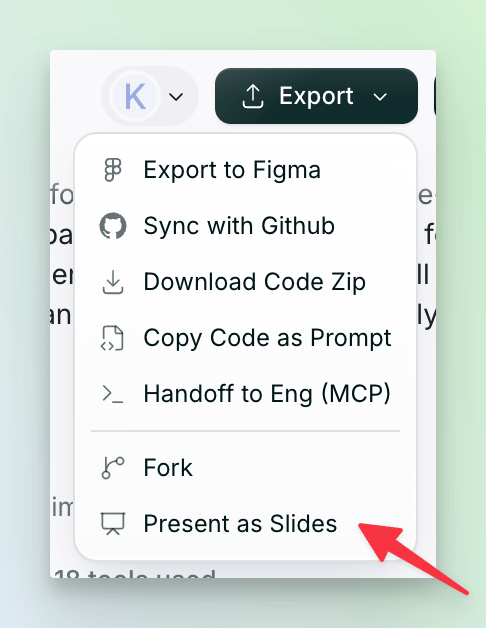
3
Open the deck
Magic Patterns opens the deck in a new tab and leaves the original design unchanged.
Editing slides
Reordering slides
Drag a thumbnail to move that slide. To move several slides together, select them with Cmd/Ctrl + click or Shift + click before dragging.Deleting slides
Right-click a thumbnail and choose Delete. You can also select one or more slides and press Delete / Backspace.Adding and editing content
Select a slide, then tell the agent what to change in the chat bar. You can also edit directly utilizing visual edit.Present and export your deck
Present fullscreen or download your slides as a PDF.